Drag, Drop — Your Cabinet Is Ready
The most tiring part of a joiner's day is explaining to software a cabinet that is already finished in their head. You know the sizes, you know what goes where — and yet building the panels one by one takes half an hour.
In Cabinet Wizard (Dolap Sihirbazı) that half hour is gone. You grab a module from the palette on the left and drop it on the wall. That is the whole operation.
What you drop is not a picture — it is a real cabinet
This is the difference. The module you drop is not an image or a frozen block: its side panels, tops, shelves, back, door and plinth are separate real parts. Hinge cups, shelf pins, cam locks and dowel holes are drilled automatically, positioned against the neighbouring panels.
So the moment you drop it, the cabinet is manufacturable. The cut list shows exactly the sizes on screen — the old gap between "what the drawing says" and "what the workshop cuts" disappears.
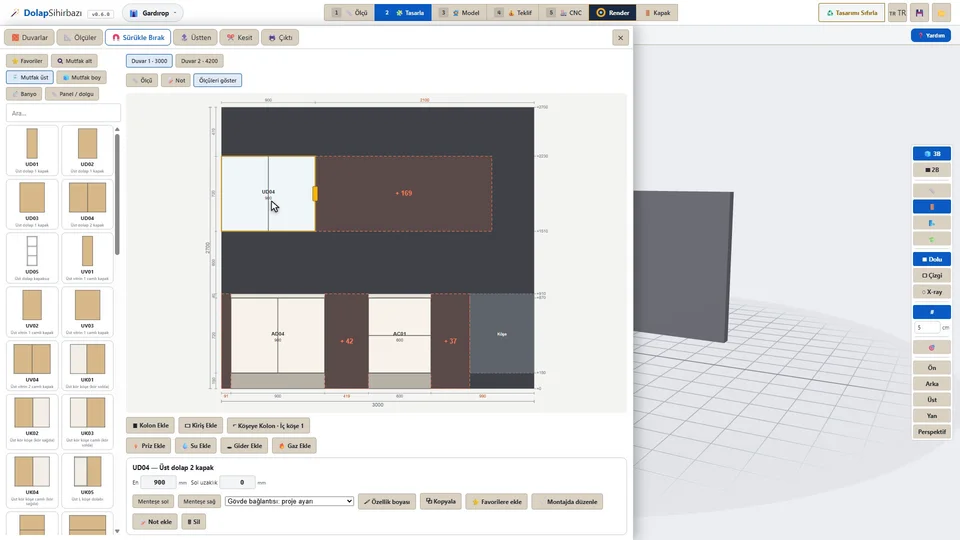
245 ready modules, found by typing
The palette is not a short list. The Module Library holds 245 ready modules: 49 kitchen base, 48 kitchen wall, 28 kitchen tall, 59 bathroom, 37 panel / filler, 8 wardrobe, 5 bedroom, 5 living / TV, 3 hallway, 3 study.
- Type "drawer", "60" or "sink" in the search box and the cards narrow down.
- The yellow + adds the module and keeps the window open, so you line modules up one after another.
- Lift-up doors, drawer units and corner modules are in the library too.
- Star a cabinet you built yourself and it waits in your favourites — with its interior layout — for the next job.
After the drop: the millimetres are yours
- Type the width and the distance from the left wall; the module slides there from where you dropped it.
- The hinge side is one click away.
- Modules butt against their neighbours, and the software reports the leftover gap in millimetres.
- Pull a handle and the size changes live; Ctrl+Z puts it back.
- 🔧 Edit in assembly takes you into the Production screen, down to that module's individual panels.
It works the same way on a touch screen — you can even drag a card onto a different wall.
And production?
Drag and drop would be half a tool if it only sped up drawing. The real gain is that the module you dropped is the production file: cut list, sheet nesting, drilling table, labels, DXF and the CNC program all come out of the same model.
Frequently asked
Can I change a module after dropping it?
Yes, down to every part. A module is built from the same parts you would place yourself: carcass, shelf, divider, drawer set, door, lift-up door, hanging rail. Size, hinge side, drawer count and runner model can all be changed later, and "Ungroup" releases the parts.
Do I have to use ready modules?
No. The panel palette lets you place bottom and top panels, sides, dividers, shelves, backs, doors, plinths and feet one by one and build from scratch. Both methods live side by side in one project.
Is this a SketchUp plugin?
No. Cabinet Wizard is a standalone Windows desktop application; it runs with no other drawing software installed.
Every feature, the lesson series and the trial version are on the product page: Cabinet Wizard — Best SketchUp Plugins.